
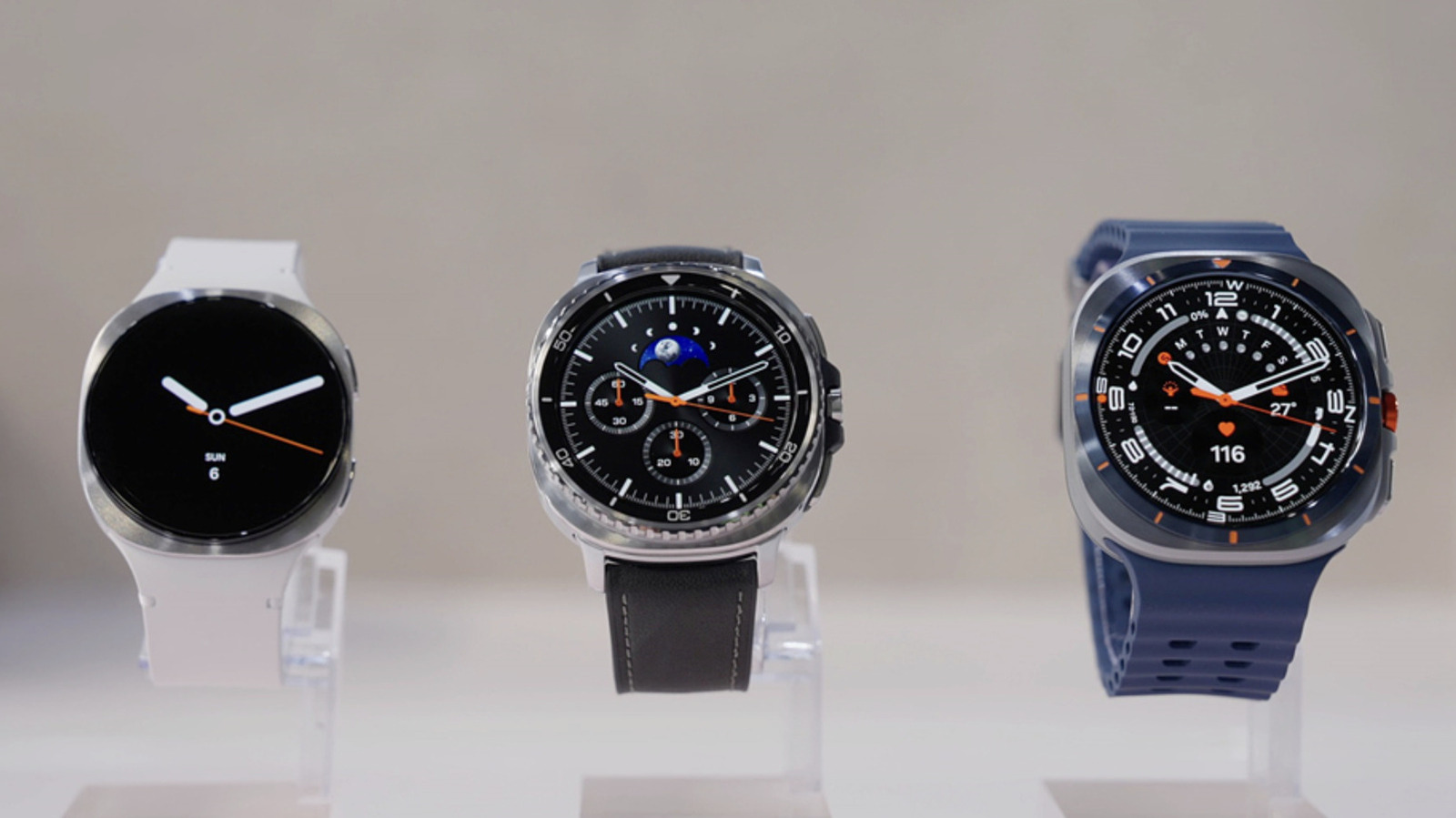
How To Pay With Google Wallet Using Your Samsung Galaxy Watch
Samsung Galaxy Watch users can utilize Google Wallet for contactless payments and transportation, provided the device runs Wear OS 2.0 or newer. According to Samsung, this capability is available in supported regions like the U.S., requiring a compatible Galaxy Watch 4 or later model and a linked Android phone.
Which Samsung Galaxy Watches support Google Wallet?
Google Wallet requires Wear OS version 2.0 or newer to function on a wearable. Samsung confirms that this requirement excludes the Tizen-powered Galaxy Watch 1, 2, and 3 models. Users with a Galaxy Watch 4 or any subsequent model can use the service.
To verify compatibility, users can swipe down on the watch, enter Settings, and select “About watch.” The Wear OS version is listed under “Software information.”
How do you set up Google Wallet on a Galaxy Watch?
Installation begins in the Play Store on the Galaxy Watch, where users search for and install Google Wallet. The process requires a lock screen; users must choose between a PIN or a Pattern. Samsung notes that selecting “Unlock without tap after PIN entered” removes the need to press an OK button after entering a PIN.
The setup must be mirrored on the linked Android phone. Users must download and install Google Wallet from the Play Store on the mobile device to sync the apps.
How do you add and use payment methods?
Users add cards by tapping the “+” tile on the watch, which directs them to the Wallet app on their phone. They can select cards already saved on Google Play or add a new credit or debit card by scanning the physical card or typing details manually.
The Wallet app then confirms with the user’s bank if the specific card supports Tap to Pay. According to Samsung, not all banks or cards support this feature. Once verified, the first card added becomes the default, though users can change this by selecting a different card and choosing “Make default.”
To make a purchase, Galaxy Watch users must unlock the device and open the Google Wallet app. They then hold the watch face close to a supported card reader. A vibration, sound, and blue checkmark indicate a successful transaction.
What are the payment options in Japan?
In the Japanese market, specific Samsung hardware is required to use Suica and PASMO cards due to the necessity of Sony’s FeliCa technology. Samsung identifies the supported models as the Galaxy Watch 6, Galaxy Watch 6 Classic, Galaxy Watch 7, Galaxy Watch 8, Galaxy Watch 8 Classic, and Galaxy Watch Ultra.
Users with these models can add prepaid cards directly through the Wallet app on the watch and manage funds within the application.
What may happen next?
As more regions adopt tap-to-pay infrastructure, Google Wallet could expand its supported locations beyond the U.S. and Japan. Future updates may also alter the unlock requirements for Galaxy Watches, which currently differ from the Pixel Watch 2’s ability to pay without unlocking.
Frequently Asked Questions
Can I use Google Wallet on a Galaxy Watch 3?
No. Samsung’s Galaxy Watch 1, 2, and 3 models use Tizen and do not meet the Wear OS 2.0 requirement.
Do I have to unlock my Galaxy Watch to pay?
Yes. Unlike the Pixel Watch 2 or newer Pixel devices, Galaxy Watch users must unlock their device and open the Google Wallet app before holding it to a reader.
How do I know if my payment went through?
The smartwatch will vibrate, produce a sound, and display a blue checkmark on the screen to confirm a successful payment.
Do you prefer using a dedicated manufacturer’s payment app or a universal wallet like Google Wallet?