

Microsoft 365 admin roles and responsibilities
Microsoft 365 administrative roles are shifting toward a Zero Trust model to prevent “permission drift” and “role creep.” According to Microsoft, limiting Global Admins to fewer than five users is critical to reducing the attack surface, especially as AI tools like Copilot risk surfacing sensitive data to over-privileged users through broad access settings.
Why is “permission drift” a critical security risk?
Permission drift happens when users retain access rights they no longer need after changing roles or completing a project. It’s a quiet accumulation of power. When an employee moves from Finance to Marketing but keeps their “Finance Admin” rights, the organization’s attack surface grows. If that account is compromised, the blast radius includes sensitive financial data the user shouldn’t even see.

Microsoft manages these permissions through role-based access control (RBAC). This system splits duties across Microsoft Entra ID for identity and specific workload roles for services like Exchange, SharePoint, and Teams. The danger lies in the fragmentation. Because permissions live in different portals, admins often miss the “drift” until an audit or a breach occurs.
How does M365 Copilot change the urgency of access reviews?
The rollout of M365 Copilot has turned a governance nuisance into a security emergency. Copilot doesn’t change permissions, but it makes them visible. If a user has “read” access to a sensitive payroll folder they forgot they had, Copilot can surface that data in a simple chat response. It effectively indexes oversharing.
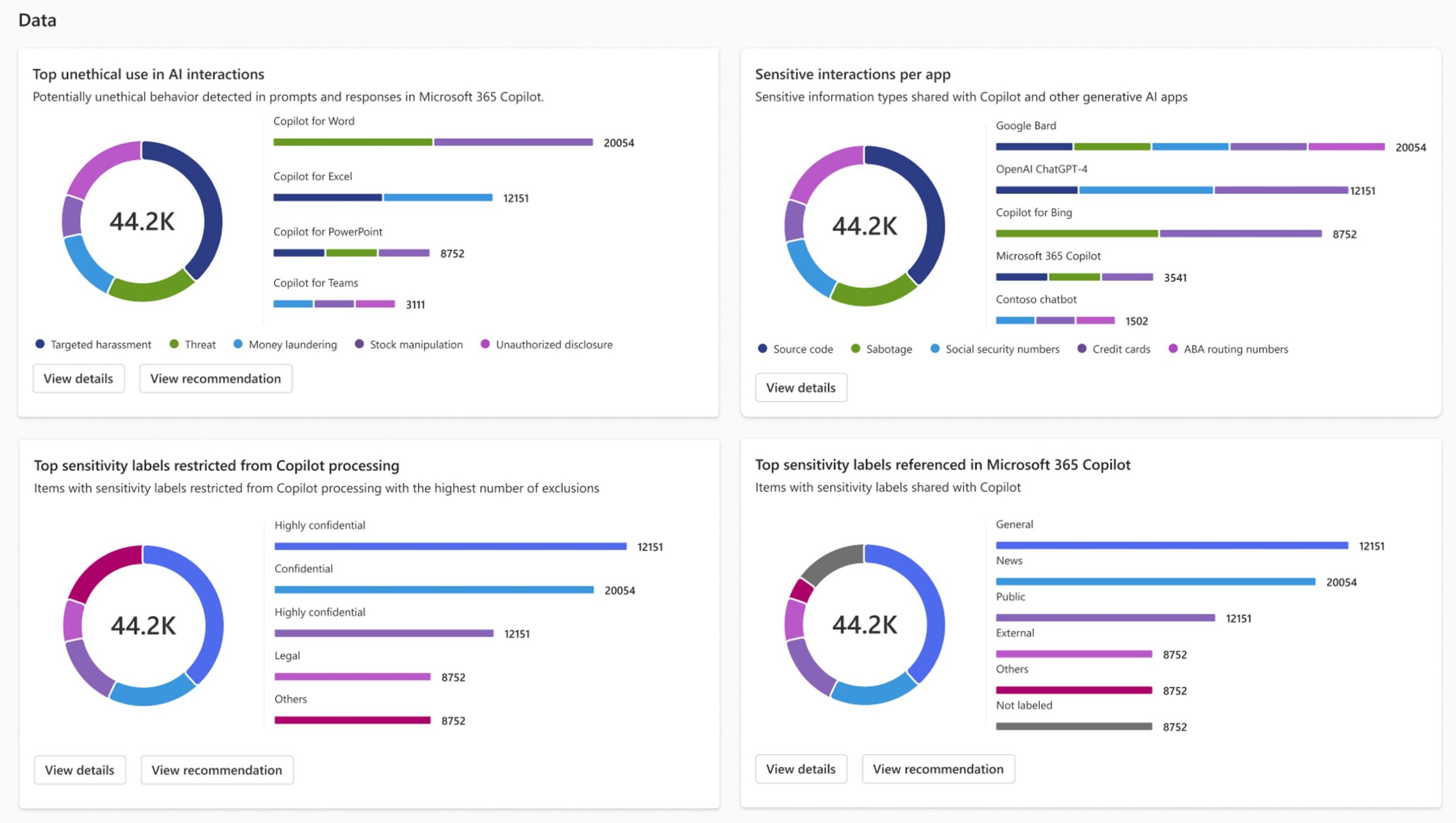
According to governance standards, the “least privilege” principle is the only defense. Admins can’t rely on the fact that a user “just won’t find” a hidden folder. AI finds everything. This makes regular access reviews mandatory rather than optional. Organizations are now forced to move from annual reviews to continuous monitoring to prevent sensitive data leaks via AI prompts.
What is the future of RBAC in Microsoft 365?
Industry trends show a move away from “standing access” toward Just-In-Time (JIT) elevation. Instead of a user being a “SharePoint Admin” 24/7, they request the role for a specific window of time. Once the task is done, the permission expires. This eliminates the possibility of role creep because the privilege isn’t permanent.
We’re also seeing a shift toward unified visibility layers. Native M365 tools require admins to jump between Entra ID, the M365 Admin Center, and Purview. This “portal hopping” creates blind spots. Tools like ShareGate Protect are filling this gap by consolidating access patterns across SharePoint, OneDrive, and Teams into one view. This allows admins to see how access actually behaves, rather than just seeing a list of assigned roles.
Comparison: Standing Access vs. Just-In-Time (JIT) Access
| Feature | Standing Access | Just-In-Time (JIT) |
|---|---|---|
| Risk Level | High (Permanent target) | Low (Temporary target) |
| Management | Manual revocation | Automatic expiration |
| Audit Trail | General logs | Request-based justification |
How do admins stop “role creep” at scale?
Stopping role creep requires moving beyond PowerShell scripts and manual spreadsheets. At scale, broken inheritance in SharePoint is the biggest culprit. When a folder’s inheritance is broken, it creates a unique permission set that often gets forgotten. Over time, these “unique” permissions pile up, creating a visibility nightmare.
To combat this, admins should adopt these three steps:
- Audit External Sharing: Regularly check who has access to information outside the organization via Microsoft’s external sharing settings.
- Automate Lifecycle Management: Tie role assignments to HR triggers. When a user’s department changes in Entra ID, their associated workload roles should trigger a review.
- Use Governance Layers: Use tools that surface “oversharing” and “inactive workspaces.” Identifying a Team that hasn’t been touched in six months is the fastest way to prune unnecessary permissions.
Frequently Asked Questions
What is the difference between a Global Admin and a User Admin?
A Global Admin has full access to every setting in the tenant. A User Admin handles day-to-day tasks like password resets and license assignments but cannot manage other high-privileged roles. [Internal Link: Guide to M365 Admin Roles]
What is “Role Creep”?
Role creep occurs when an administrator gradually accumulates privileges over time as they take on new tasks, but never lose the old ones, leading to over-privileged accounts.
Can SharePoint Admins see every file in OneDrive?
No. A SharePoint Admin has control over settings and site collections, but they don’t have automatic access to every individual’s OneDrive files without granting themselves permission first.
Are your M365 permissions drifting? Share your experience with “role creep” or your strategy for managing Copilot risks in the comments below.