
Windows 11 Adds New AI Components Page to Manage and Uninstall AI Models
Windows 11 AI Transparency: Microsoft’s Shift Toward User Control
For many Windows 11 users, the integration of artificial intelligence has felt like a “black box”—a series of background processes and hidden files that consume storage without clear explanation. However, recent developments in Insider Experimental Preview build 26300.8553 suggest that Microsoft is finally opening that box.
A new, hidden “AI Components” page in the Settings app is beginning to surface, offering users a glimpse into the local models powering their Copilot+ PCs. This shift toward transparency is more than just a UI tweak. it represents a fundamental change in how the operating system handles local, on-device intelligence.
What the New AI Management Interface Reveals
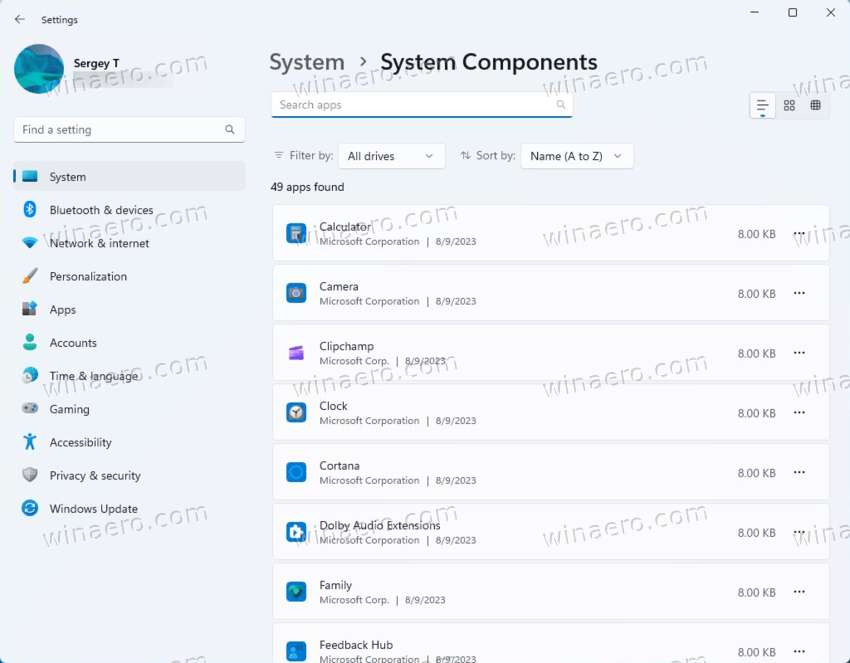
The upcoming interface provides a centralized hub for monitoring local AI assets. For power users and those concerned about system bloat, This represents a welcome addition. The page displays critical metadata for each model, including:
- Publisher information to identify the source of the AI component.
- Version numbers to track updates and compatibility.
- Installation dates to monitor when specific features were added.
- Disk usage to see exactly how much space a model occupies on your drive.
By providing these metrics, Microsoft is acknowledging that users want agency over the software running on their machines. Transparency is the first step in moving from a “forced” AI experience to one that feels like a user-managed utility.
The Future of Uninstalling AI Models
Perhaps the most significant aspect of this update is the inclusion of an uninstall button. Currently, the utility is limited to Phi Silica, the on-device language model designed for Copilot+ PCs. While this is the only model currently removable through the interface, it sets a powerful precedent.
The ability to remove unnecessary AI components addresses a common user complaint: the consumption of valuable storage and system resources by features they may not use. If Microsoft continues this trend, we may eventually see a modular Windows where users can pick and choose which AI capabilities they want to keep active, effectively “trimming” their OS to their specific needs.
Why This Matters for the Windows Ecosystem
Microsoft has faced criticism for the silent, automatic installation of AI models. By introducing a management page, the company is attempting to balance the aggressive deployment of new technology with the need for system accountability.
While it remains unclear if other models will become removable in the future—or if some will remain mandatory due to core system dependencies—this move signals a more mature approach to AI integration. As on-device AI becomes a standard requirement for modern computing, giving users the “off switch” is essential for long-term platform trust.
Frequently Asked Questions (FAQ)
- Can I remove all AI features from Windows 11 right now?
- Not officially. While Microsoft is testing an “AI Components” page that allows for the removal of specific models like Phi Silica, most AI features are deeply integrated into the OS.
- Where can I find the AI Components page?
- The page has been spotted in Insider Experimental Preview build 26300.8553. It is not yet available in the stable version of Windows 11.
- Will removing AI components affect my PC’s performance?
- Removing AI components may disable specific AI-driven features or applications that rely on those models to function correctly.
What do you think about Microsoft’s approach to AI transparency? Are you looking forward to reclaiming disk space, or do you find the new AI features essential to your workflow? Share your thoughts in the comments below or subscribe to our newsletter for the latest updates on Windows 11 development.