

How to Build a Professional Task Management System in Microsoft Excel
The Future of Personal Productivity: Beyond the Subscription Model
Task management is shifting away from specialized, subscription-based applications toward flexible, data-driven platforms like Microsoft Excel. By utilizing native tools such as data validation, conditional formatting, and cloud-based syncing through OneDrive, users are recreating the functionality of premium software without recurring monthly fees. This transition reflects a broader trend of “data sovereignty,” where individuals prefer maintaining their personal task ecosystems within universal software rather than proprietary silos.
How Excel Replaces Dedicated Task Managers
Traditional task managers often rely on rigid, pre-set structures. According to Microsoft, the integration of Excel’s Table features—specifically the ability to auto-expand rows while retaining formulas—allows for a “unified inbox” approach. By collapsing various life categories into a single, filterable master table, users avoid the fragmentation that occurs when switching between multiple worksheets.
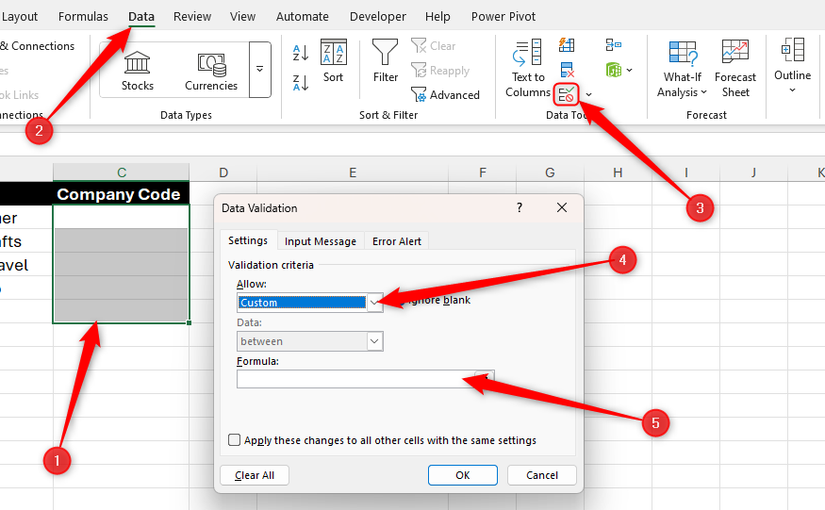
Data validation is the primary mechanism for this migration. By selecting the Data tab and setting validation to “List,” users replicate the tag-based systems found in apps like Todoist or Asana. This ensures that every task entry remains consistent, preventing the “data rot” that often plagues manual tracking systems.
Automating Visual Cues for Better Workflow
The psychological satisfaction of checking off a task is a core component of modern productivity UX design. Excel now provides native checkboxes that assign Boolean values (TRUE/FALSE) to cells. By applying conditional formatting—specifically the “Use a formula to determine which cells to format” rule—users can trigger a strikethrough effect automatically once a box is checked.
Industry analysts at Gartner have noted that visual feedback loops are essential for sustained task engagement. By setting the formula =$A2=TRUE to trigger a gray strikethrough, users create an immediate visual separation between active and completed work, mimicking the “Archive” or “Done” features of commercial tools.
Can Spreadsheets Replace Push Notifications?
While Excel lacks native push notifications, it utilizes “urgent” conditional formatting to replicate alert systems. By using the formula =AND($A2=FALSE,$E2-TODAY()<2), users can force cells to turn bold red when a deadline is within 48 hours or overdue.
This approach forces a deliberate review of the task list, which productivity researchers often argue is more effective than passive notifications. Instead of reacting to an interruptive ping, the user engages with their priorities on their own terms. This shift toward “intentional productivity” is gaining traction as a way to combat the digital fatigue associated with constant app-based alerts.
Will Cloud Syncing Become the Standard for Offline Tools?
The portability of these systems depends entirely on cloud infrastructure. By storing the Excel file in OneDrive, users gain cross-device continuity. The mobile version of Excel, particularly the “Cards View,” transforms row-based data into a mobile-friendly interface.
This capability bridges the gap between desktop power and mobile convenience. As remote work continues to evolve, the ability to collaborate via @mentions and shared workbook access provides a lightweight alternative to dedicated project management suites.
Frequently Asked Questions
- Is Excel better than dedicated task apps? Excel offers more customization and zero subscription costs, but it requires manual setup compared to the “out-of-the-box” experience of apps like Todoist.
- Can I share my Excel task list with a team? Yes, by saving the file to OneDrive or SharePoint, multiple users can edit the same list simultaneously.
- Do I need to know how to code to build this? No. The system relies on built-in features like Data Validation and Conditional Formatting, which are standard in all modern versions of Microsoft 365.
Did you know? The “Cards View” in the Excel mobile app is designed specifically to make row-based data, like task lists, easier to navigate on small screens without the need for horizontal scrolling.
Ready to streamline your workflow? Start by creating your master table today and move your tasks out of fragmented apps. If you found this guide helpful, subscribe to our newsletter for more tips on mastering Microsoft 365.